canDO Bundle Quick Start
1. Set up each product
Valve Controller: install it and pair it with the Valve Ctrl app, as in the Valve Controller Quick Start. Keep the 6-digit pairing code from its label: you need it again in step 3.
canDO+: install it and connect the canDO+ Manager app, as in the canDO+ Quick Start.
2. Update both
Linking needs canDO+ firmware 3.0 or later and Valve Controller firmware 1.3.0 or later. Each app offers its update when one is waiting: canDO+ Manager under Settings › canDO+, Valve Ctrl under Update.
3. Link them
Start the engine, or switch on diagnostics mode so the controller has power: press Start 3 times in quick succession, without your foot on the brake. In diagnostics mode, a battery charger on the car is a good idea. Then open canDO+ Manager in the car.
Go to Settings › Valve controller and tap Scan. Nearby controllers appear with their signal strength.
Tap yours and enter its 6-digit pairing code.
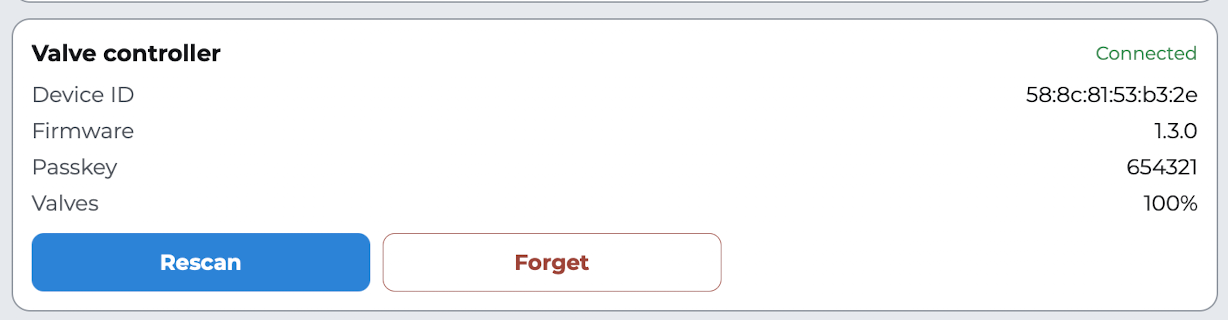
The card shows Connected, with the controller's firmware and valve position. A Valves group now appears in the action list.
The link is stored in canDO+, so valve actions work on every drive without your phone. Your phone can stay connected to the controller at the same time.
4. Put the valves on your buttons
Valve actions work like any other canDO+ action: on the Associations tab, pick a trigger, add an action from the Valves group, and tap Save. For example, M1 at 50% and M2 fully open (G8X):
| Trigger | Action |
|---|---|
| M1 Enable | 50% OPEN Valves |
| M2 Enable | 100% OPEN Valves |
| M1/M2 Disable | OEM Valves |
M1 and M2 send the same signal, so first set Settings › M1 / M2 › M1 setup to a setting that differs between your M1 and M2, for example Engine on Efficient for M1 and Sport for M2.
Any trigger works, such as MAP Long Touch → TOGGLE Valves. For an opening that is not in the list, create a custom valve action under Custom Actions on the Associations tab: a fixed percentage, or a change on top of the car's own position (× OEM, + OEM).
If something is off
| Problem | What to do |
|---|---|
| Scan finds no controller | Start the engine or switch on diagnostics mode, stay near the car, and check both firmware versions (step 2) |
| Valve actions do nothing | In canDO+ Manager, Settings › Valve controller should show Connected. Also close the canSPY tab and check that Stealth Mode is off |
| M1 and M2 are mixed up | Set M1 setup to a setting that differs between your M1 and M2 |
To check a change came from canDO+, open Valve Ctrl: the activity log under the valve ring shows canDO+ as its source. For anything else, email [email protected] with the canDO+ Device ID and the controller ID.