canDO+ User Guide
Welcome
canDO+ turns the buttons in your BMW into shortcuts: a touch, long touch, press or long press on a button you already have (a trigger) runs one or more vehicle functions you choose (actions). Typical uses are DSC off at engine start, a favourite drive setup on M1, or heated seats on a cold start.
New in firmware 3.0: canDO+ no longer creates a WiFi network. You set it up from the free canDO+ Manager app over Bluetooth, on iPhone or Android. The browser interface at cando.local and the WiFi password are gone.
| What changed | Before 3.0 | From 3.0 |
|---|---|---|
| How you connect | canDO WiFi network + web browser | canDO+ Manager app over Bluetooth |
| Security | WiFi password (WPA2) | Bluetooth pairing with a 6-digit passkey |
| Phones at once | 1 | Up to 3 |
| Firmware updates | canDO+ joins a hotspot and downloads | The app downloads and installs the update |
| canDO Valve Controller | Joined the canDO WiFi | Linked to canDO+ over Bluetooth |
If you are new to canDO+, read Installation through How canDO+ works in order. If you are upgrading, read Get the app and connect and Firmware updates; your saved associations carry over.
Vehicles and licences
Each canDO+ is built for one vehicle family and one iDrive version. The app shows yours under Settings › canDO+ (for example canDO+ BLACK G8X iD8.5).
| Family | Examples | iDrive 7 | iDrive 8 | iDrive 8.5 |
|---|---|---|---|---|
| G8X (M cars) | M2 G87, M3 G80/G81, M4 G82/G83 | Yes | Yes | Yes |
| G4X | 2 Series Coupé G42 | — | Yes | Yes |
CAN and LIN. Besides the CAN bus, canDO+ connects to the LIN bus of the iDrive button panel. That gives it the panel buttons the CAN bus cannot see or press: A/OFF (auto start/stop), Parking Assist, M Sound on G8X, Sport / Eco Pro / Comfort on G4X, and DSC and M Mode on iDrive 7.
Licences. What your canDO+ can do depends on its licence, shown under Settings › License. A licence is tied to one canDO+ and survives updates and factory resets.
| Feature | What it unlocks | Included |
|---|---|---|
| canSPY | Watching the CAN and LIN buses | Always |
| Associations | Every action in this guide, custom messages, canSEND, valve control | Every canDO+ except canSPY-only units |
| Temperature Triggers | ENGINE Start (Cold) and ENGINE Start (Hot) | Sold separately |
A canSPY-only unit never transmits on the car's buses. It can be upgraded in the field: buy the unlock on cando.plus, then activate it in the app (see Settings, licence and saving).
In the box: the canDO+ module and its Y-cable for the CAN connection. The LIN connection is described in the LIN Connection Guide.
Installation
canDO+ plugs into the CAN connection behind the iDrive controller in the centre console with the supplied Y-cable, with no cutting or splicing.
Park the car safely, switch the ignition off and leave a door open; do not lock it. After about 5 minutes the centre console light goes off, which means the console has no power. Only then unplug anything.
Remove the trim around the iDrive controller. The Kies Motorsports video Control Any Button in your BMW with canDO+ shows the steps.
Unplug the iDrive controller's CAN connector, plug the Y-cable in between, and plug canDO+ into the Y-cable.
Make the LIN connection as shown in the LIN Connection Guide.
Place canDO+ near the back of the console, where it is easy to reach if you ever need physical access to it. Make sure it does not press on other parts or wiring, and keep it at least 20 cm from where anyone sits.
Before you refit the trim, check that it works: connect with the app (next section). Then refit the trim.
canDO+ is powered by the car. It switches on when the car wakes up (for example when you unlock it) and off when the car sleeps, so it draws nothing while parked.
Get the app and connect
Install canDO+ Manager, open it in the car, and it finds and connects to your canDO+ on its own; the first time, your phone asks for the passkey 123456.
| Phone | Download |
|---|---|
| iPhone, iPad, and Mac with Apple silicon | canDO+ Manager on the App Store |
| Android | canDO+ Manager on Google Play |
We recommend a tablet or an Apple silicon MacBook. The larger screen shows two columns side by side, which makes building associations and reading canSPY much easier. A phone works for everything, one screen at a time, and is required for the one-time upgrade from WiFi firmware.
First connection
Open the app and accept the disclaimer.
Allow Bluetooth when asked. On Android this is Nearby devices (older Android versions ask for Location; the app never uses your location).
Sit in the car. The app shows Looking for your canDO+… and connects to it. If more than one canDO+ is in range, pick yours from the list; each one is named canDO-XXXX.
When the phone asks for a code, type the passkey: 123456 unless you have changed it. You get three tries.
The badge at the top right turns green and shows the canDO+ name. Later connections need no code.
Good to know
Up to 3 phones can be connected at once. A second phone connects most easily within 2 minutes of the first; after that, canDO+ stops advertising until a phone disconnects.
Leaving the app disconnects it after 30 seconds. When you come back, it reconnects by itself.
Change the passkey under Settings › Pairing passkey. It applies to phones paired after the change. Forget phones unpairs every phone, including yours.
Forgot the passkey? Long-press OPTION on the iDrive controller until you hear 3 beeps. The passkey is back to 123456 and every phone is forgotten. On an iPhone, also remove canDO+ under Settings › Bluetooth before you pair again.
Upgrading a canDO+ that still has WiFi firmware (2.x)
The app can move a canDO+ from WiFi firmware to firmware 3.0, once. Your associations and custom messages carry over.
Use a phone with mobile data for this upgrade. While the phone is on the canDO WiFi network, that network has no internet, so the app downloads the firmware over mobile data (LTE/5G). A tablet or computer without mobile data cannot download it while joined to canDO. Check that mobile data is on and allowed for canDO+ Manager.
Sit in the car and, in your phone's WiFi settings, join the canDO network. The password is candobmw unless you changed it.
Open the app. It sees the canDO WiFi network and offers to update canDO+.
Accept. The app downloads the new firmware over your mobile data and installs it. Keep the app open and the phone near the car.
canDO+ restarts with Bluetooth, and the app goes back to its Bluetooth screen and pairs as above.
App tour
The app has three tabs under a header that is always visible: Associations to set up what canDO+ does, canSPY to watch the bus, and Settings for the device itself.
| Where | What it is for |
|---|---|
| Header: Save / Saved | Lights up when you have edits that are not yet stored in canDO+. Tap Save to keep them after the car sleeps |
| Header: connection badge | Green with the canDO+ name when connected; grey Not connected otherwise |
| Associations tab | Pick a trigger, add actions, reorder them, test them, and create custom actions. Hidden on canSPY-only units |
| canSPY tab | Live CAN and LIN traffic: trace and table views, filters, canSEND |
| Settings tab | Firmware, licence, passkey, valve controller, behaviour options, temperature triggers, restart and resets |
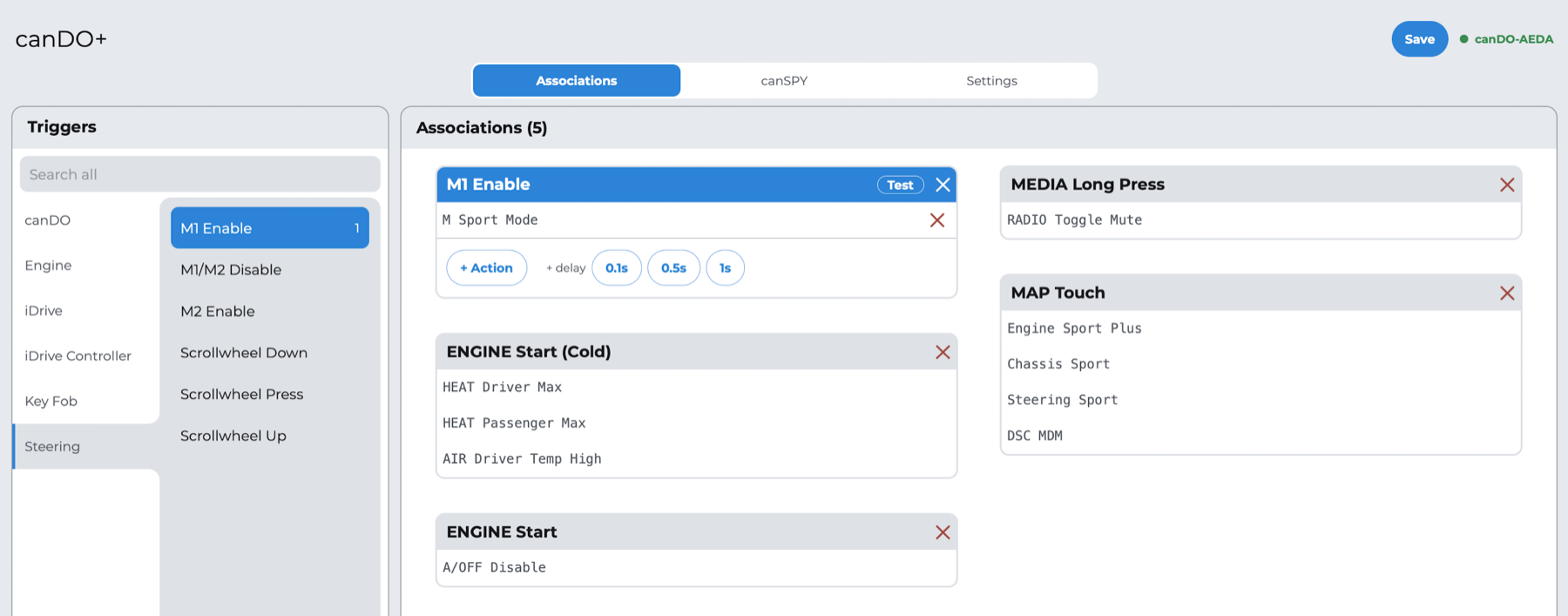
On a phone the app is portrait only; on a tablet it turns, and tablets and Macs show two columns side by side.
When canDO+ is not connected, the app shows the connection screen instead of the tabs. It has Search again, a link to the WiFi updater for 2.x firmware, and Trouble connecting? Send logs to canDO support.
How canDO+ works
An association links one trigger to a list of actions; when the trigger happens, canDO+ runs the actions in order, top to bottom.
A trigger is something the car tells canDO+: a button gesture, the engine starting, the key fob, or canDO+ powering up.
An action is something canDO+ asks the car to do: change a drive setting, switch DSC, set the climate, press an iDrive button, wait, and so on.
Each trigger has one association, with as many actions as you like. iDrive button presses can be both a trigger and an action.
Button gestures
Touch-sensitive buttons (the iDrive buttons and the panel buttons) offer up to four triggers. Each gesture fires only one of them.
| Gesture | How | When it fires | Beep |
|---|---|---|---|
| Touch | Rest a finger on the button without pressing, then lift it | When you lift your finger | Yes |
| Long Touch | Rest a finger on the button for about half a second | While your finger is still there. If Long Touch has no association, the plain Touch fires on lift instead | Yes |
| Press | Press the button and release it | When you release it | No |
| Long Press | Press and hold the button | As soon as the car reports the long press | Yes |
The beep is the car's own chime, sent by canDO+ to confirm the gesture registered. It sounds only when the gesture has an association.
Create an association
Open the Associations tab and tap Trigger to choose one. Triggers are grouped by type (iDrive, Steering, Engine, Key Fob…).
Tap + Action and choose an action. Repeat for each action you want.
To pause between actions, tap a + delay chip under the card: 0.1s, 0.5s or 1s. Add several for longer waits. You need a delay only when the car is animating the screen: during an animation the car does not listen for commands, so an action sent too early is lost. Otherwise actions can follow each other directly.
Reorder actions on the selected card, or remove one with ✕. The ✕ on the card header deletes the whole association.
Tap Test on the selected card to run it now, from the app.
Tap Save in the header. Unsaved changes work straight away but are lost when the car sleeps.
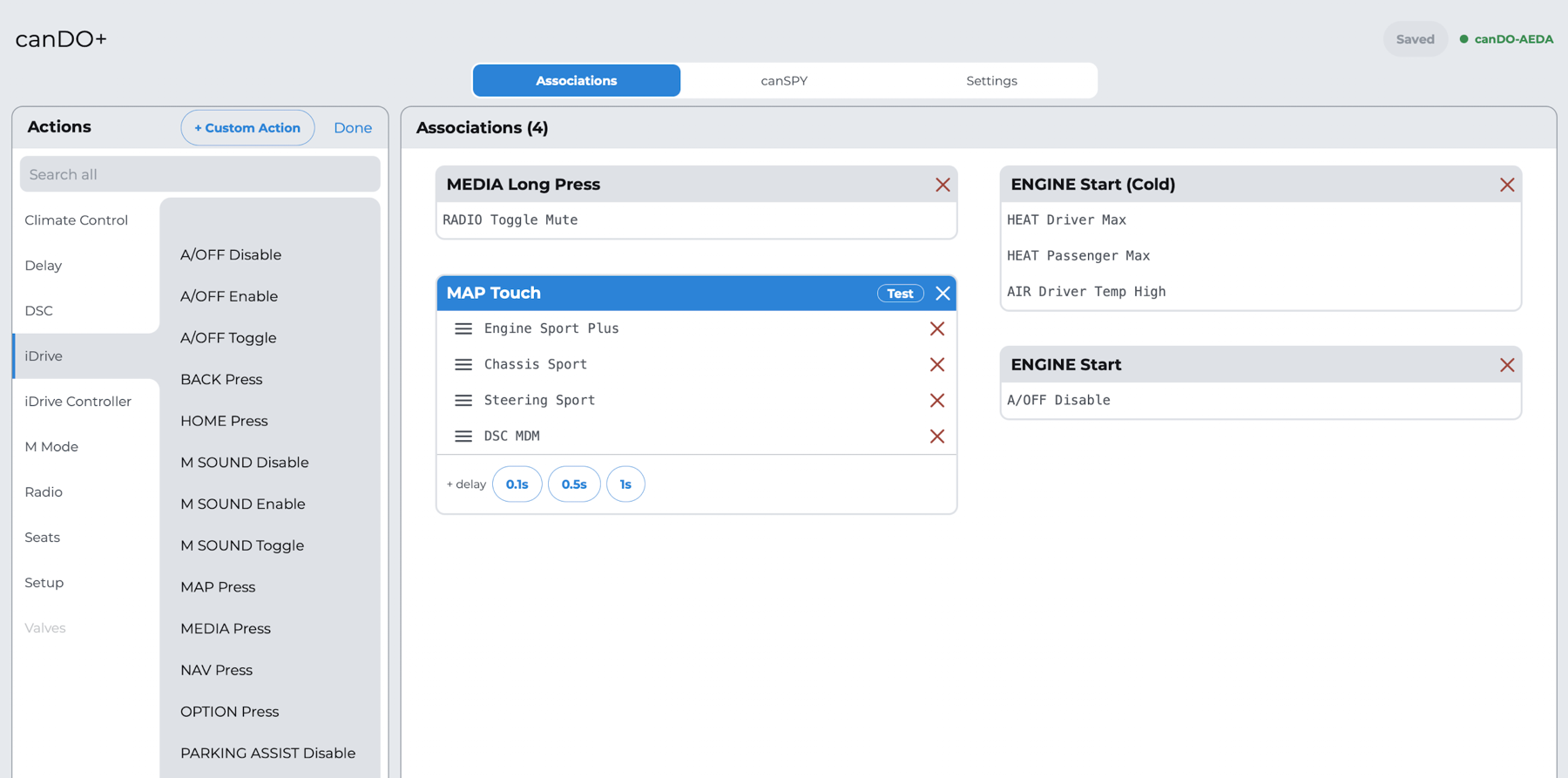
Example
On a G8X M car, make a light touch on MAP set up the car for a spirited drive:
| Step | Action |
|---|---|
| Trigger | MAP Touch |
| 1 | Engine Sport Plus |
| 2 | Chassis Sport |
| 3 | Steering Sport |
| 4 | DSC MDM |
The same MAP button still does its usual job on a press, and you can give MAP Long Touch and MAP Long Press associations of their own.
Rules worth knowing
ENGINE Start and On Boot wait 2 seconds before their first action, so the car's start-up animation is over; you do not need to add a delay for it.
While the canSPY tab is open, triggers do not fire. They work again as soon as you leave canSPY or the app.
Stealth Mode (Settings) stops canDO+ from sending anything, so no action runs.
When an iDrive animation is playing, the car may ignore an action sent too early. Add a delay before it.
Triggers reference
These are all the triggers in firmware 3.0, named as the app shows them; the app lists only the ones your canDO+ supports.
| Trigger | Group | Fires when | Available on |
|---|---|---|---|
| On Boot | canDO | canDO+ powers up as the car wakes, for example when you unlock it | All |
| ENGINE Start | Engine | The engine starts. Once per start | All |
| ENGINE Stop | Engine | About 4 seconds after the engine stops | All |
| ENGINE Start (Cold) | Engine | The first engine start after the car wakes, if canDO+ read the Cold temperature or lower as it powered on (default 5 °C / 41 °F) | Temperature Triggers licence |
| ENGINE Start (Hot) | Engine | As above, at the Hot temperature or higher (default 30 °C / 86 °F) | Temperature Triggers licence |
| FOB Door Unlock, FOB Door Lock, FOB Trunk, FOB Panic, FOB Engine Start | Key Fob | That button on the key fob | All |
| Scrollwheel Up, Scrollwheel Down, Scrollwheel Press | Steering | The steering-wheel scroll wheel | All |
| M1 Enable, M2 Enable | Steering | M1 or M2 is pressed to switch it on. Needs M1 setup in Settings | G8X |
| M1/M2 Disable | Steering | M1/M2 is switched off: by the button, or by changing the setup on screen unless Disable only with a button press is on | G8X |
| MAP, MEDIA, NAV, HOME, TEL, BACK: Touch, Long Touch, Press, Long Press | iDrive | That gesture on that iDrive button | All |
| OPTION Touch, OPTION Long Touch, OPTION Press | iDrive | That gesture on OPTION. OPTION Long Press is reserved for resetting the passkey | All |
| M MODE Touch, Long Touch, Press | iDrive | The M MODE button on the centre console | G8X |
| SETUP Touch, Long Touch, Press | iDrive | The SETUP button on the centre console | G8X |
| DSC Touch, Long Touch, Press | iDrive | The DSC button | iDrive 7 and 8 |
| A/OFF Touch, Long Touch, Press | iDrive | The auto start/stop button | All |
| PARKING Touch, Long Touch, Press | iDrive | The Parking Assist button | All |
| M SOUND Touch, Long Touch, Press | iDrive | The M Sound button | G8X |
| SPORT, ECO PRO, COMFORT: Touch, Long Touch, Press | iDrive | That drive-mode button | G4X |
| CONTROLLER Up, Down, Left, Right, Press | iDrive Controller | Pushing or pressing the iDrive controller | All |
| CONTROLLER CW, CONTROLLER CCW | iDrive Controller | Turning the controller clockwise or anticlockwise | All |
The iDrive button presses (MAP Press, MEDIA Press…) and the controller moves can also be used as actions; see the next section.
About the temperature triggers. canDO+ reads its own temperature once, as it powers on, while it is still at cabin temperature. The two triggers are checked only on the first engine start after the car wakes, and only if canDO+ has not restarted since. Set both thresholds under Settings › Temperature triggers, in °C or °F; Cold must be below Hot.
Actions reference
These are all the actions in firmware 3.0, by group as the app lists them; every action needs the Associations licence, and the app shows only those your canDO+ supports.
| Action | Group | What it does | Available on |
|---|---|---|---|
| DELAY 100ms, DELAY 500ms, DELAY 1 sec. | Delay | Waits before the next action. Chain several for longer waits | All |
| M Road Mode, M Sport Mode, M Track Mode | M Mode | Sets the M Mode | G8X, iDrive 8 and 8.5 |
| Activate Drift Mode, Deactivate Drift Mode | M Mode | Switches Drift Mode | G8X |
| Engine Efficient, Engine Sport, Engine Sport Plus | Setup | Sets the engine setting | G8X |
| Chassis Comfort, Chassis Sport, Chassis Sport Plus | Setup | Sets the chassis setting | G8X |
| Steering Comfort, Steering Sport, Steering Sport Plus | Setup | Sets the steering setting | G8X |
| Brakes Comfort, Brakes Sport, Brakes Sport Plus | Setup | Sets the brake setting | G8X |
| Shift Assist. On, Shift Assist. Off | Setup | Switches shift assistance | G8X |
| M xDrive 4WD, M xDrive 4WD Sport, M xDrive 2WD | Setup | Sets the M xDrive mode | G8X with xDrive |
| Sport, Sport Plus, Sport Individual, Comfort, Eco Pro, Eco Individual | Drive Mode | Sets the drive mode | G4X |
| DSC On, DSC Off | DSC | Switches DSC | iDrive 8 and 8.5 |
| DSC MDM | DSC | Sets M Dynamic Mode | G8X, iDrive 8 and 8.5 |
| DSC Dynamic Traction | DSC | Sets Dynamic Traction Control | G4X |
| M Traction Control 0 to 10 | DSC | Sets the M traction level | G8X |
| M MODE Press, DSC Press | iDrive | Presses that button, through LIN | G8X, iDrive 7 |
| A/OFF Enable, A/OFF Disable, A/OFF Toggle | iDrive | Auto start/stop on, off, or the other way | All |
| PARKING ASSIST Enable, Disable, Toggle | iDrive | Parking Assist on, off, or the other way | All |
| M SOUND Enable, M SOUND Disable, M SOUND Toggle | iDrive | M Sound on, off, or the other way | G8X |
| SPORT Press, ECO PRO Press, COMFORT Press | iDrive | Presses that drive-mode button | G4X |
| MAP, MEDIA, NAV, HOME, TEL, BACK, OPTION Press | iDrive | Presses that iDrive button | All |
| CONTROLLER Up, Down, Left, Right, Press | iDrive Controller | Moves or presses the iDrive controller | All |
| CONTROLLER CW, CONTROLLER CCW | iDrive Controller | Turns the controller one step | All |
| CONTROLLER Home | iDrive Controller | Jumps to the top of the current list, a known starting point for menu sequences | All |
| AIR On, AIR Off | Climate Control | Climate control on or off | All |
| A/C On, A/C Off | Climate Control | Air conditioning on or off | All |
| A/C Max On, A/C Max Off, A/C Max Toggle | Climate Control | Maximum cooling on, off, or the other way | All |
| AIR Sync On, AIR Sync Off | Climate Control | Links or unlinks driver and passenger temperatures | All |
| AIR Fresh Air, AIR Automatic Recirc., AIR Recirculation | Climate Control | Sets the air intake | All |
| AIR Fan Very Low, AIR Fan Max | Climate Control | Sets the fan speed | All |
| AIR Driver Temp Low, AIR Driver Temp High | Climate Control | Sets the driver temperature to its minimum or maximum | All |
| AIR Passenger Temp Low, AIR Passenger Temp High | Climate Control | Sets the passenger temperature to its minimum or maximum | All |
| AIR Upper Temp Min, AIR Upper Mid Low, AIR Upper Mid High, AIR Upper Temp Max | Climate Control | Sets the upper-vent temperature | All |
| STEERING Heat On, Off, Toggle | Climate Control | Heated steering wheel | iDrive 8.5 |
| HEAT Driver Max, 3, 2, 1, Off | Seats | Sets driver seat heating. Level 3 on iDrive 8 only | All |
| HEAT Driver Toggle | Seats | Driver seat heating between Off and Max | All |
| VENT Driver Max, 3, 2, 1, Off | Seats | Sets driver seat ventilation. Level 3 on iDrive 8 only | Cars with ventilated seats |
| HEAT Passenger Max, 3, 2, 1, Off, Toggle | Seats | As for the driver | All |
| VENT Passenger Max, 3, 2, 1, Off | Seats | As for the driver | Cars with ventilated seats |
| RADIO Volume -, RADIO Volume + | Radio | Volume one step down or up | All |
| RADIO Toggle Mute | Radio | Mutes or unmutes | All |
| RADIO Station -, RADIO Station + | Radio | Previous or next station | All |
| RADIO Scan | Radio | Next station every 10 seconds, until you change station or run RADIO Scan again | All |
| Beep | Radio | Sounds the confirmation beep | All |
| TOGGLE Valves, 100% OPEN Valves, 75% OPEN Valves, 50% OPEN Valves, 25% OPEN Valves, OEM Valves | Valves | Sets the exhaust valves | With a canDO Valve Controller |
Custom actions
You can add your own actions at the bottom of the Associations tab (on a tablet, in the Custom Actions panel).
CAN message. Type a frame as
III#BBBBBBBBBBBBBBBB(a 3-digit hex ID, then 1 to 8 data bytes in hex) and a name of up to 32 characters, then tap Create. It appears under the Custom group. Tap one to edit it; deleting it also removes it from every association that uses it. canSPY is the place to find the frames worth sending.Valve action. With a valve controller linked, pick a mode and a value from 1 to 99 and tap Create.
| Valve mode | Creates | Meaning |
|---|---|---|
| Fixed % | NN% OPEN Valves | Valves at NN% open |
| × OEM | OEM x 1.NN Valves | The car's own valve position, multiplied by 1.NN |
| + OEM | OEM + NN% Valves | The car's own valve position, plus NN% |
Settings, licence and saving
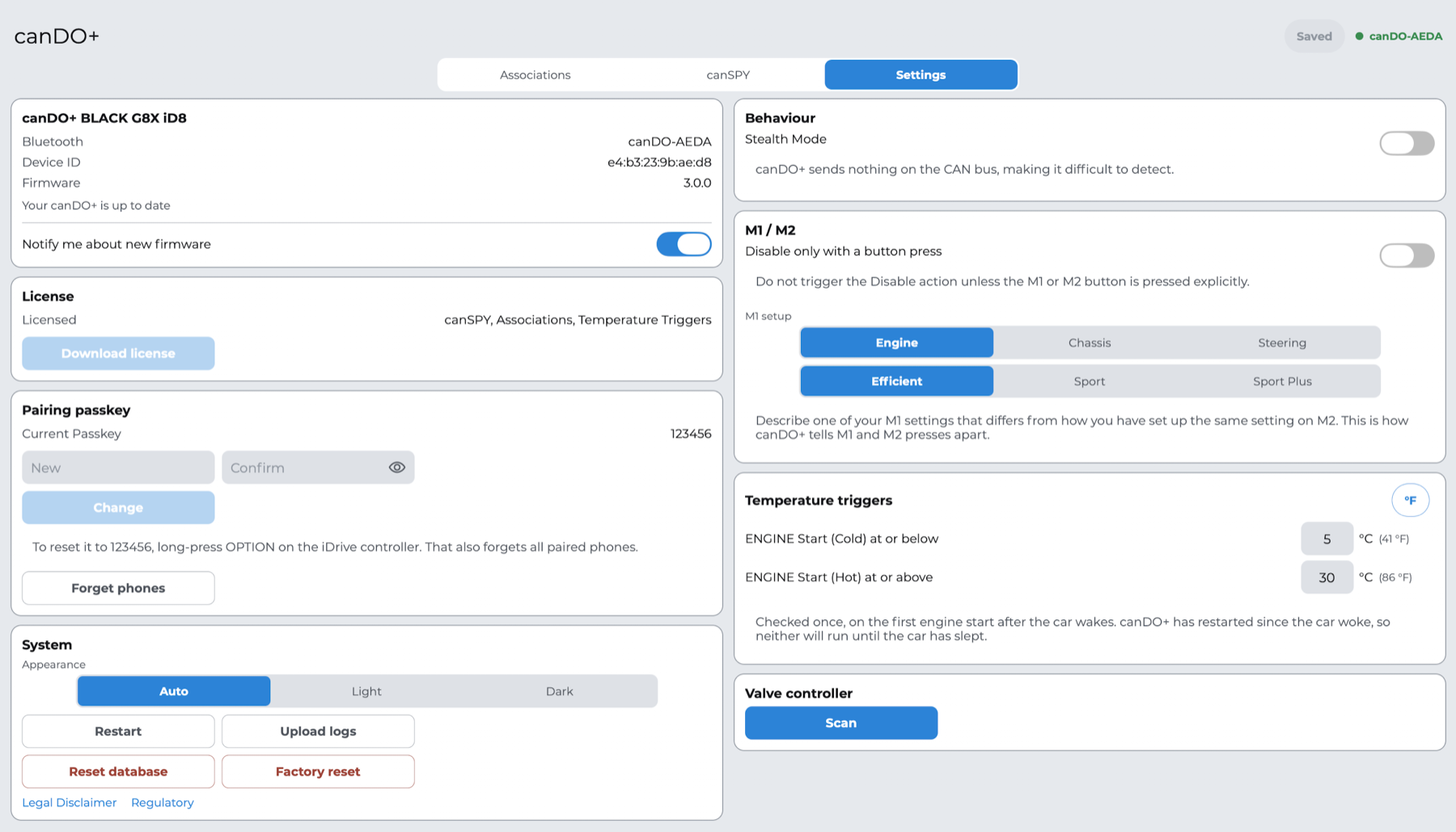
Option changes on the Settings tab take effect and are stored at once; only association and custom-action edits wait for Save.
| Card | Setting | What it does |
|---|---|---|
| canDO+ | Bluetooth, Device ID, Firmware | Your canDO+ name, its ID for licences and support, and its firmware version. Updates are installed here (next section) |
| Pairing passkey | Change, Forget phones | See Get the app and connect |
| License | Licensed / Not licensed | What this canDO+ can do |
| License | Download license | Fetches this unit's licence from cando.plus, for example after support grants a feature |
| License | Order #, Email, Activate | Activates an unlock you bought. canDO+ restarts with the new features |
| Valve controller | Scan, Rescan, Forget | Links a canDO Valve Controller (below) |
| Exhaust valves on M Sound | When M Sound turns ON / OFF | G8X with a valve controller: sets the valves when you switch M Sound, from Do nothing, OEM, 25 / 50 / 75 / 100%, or a Fixed %, × OEM or + OEM value |
| Behaviour | Stealth Mode | canDO+ sends nothing on the CAN bus, so no action runs and it is hard to detect |
| M1 / M2 | Disable only with a button press | M1/M2 Disable fires only when you press M1 or M2, not when the setup is changed on screen |
| M1 / M2 | M1 setup | Tells canDO+ which of M1 and M2 you pressed (below) |
| Temperature triggers | Cold at or below, Hot at or above | Thresholds for the two ENGINE Start temperature triggers; tap °C/°F to switch units |
| System | Appearance | Auto, Light or Dark |
| System | Restart, Upload logs | Restarts canDO+; sends this phone's and canDO+'s logs to support |
| System | Reset database | Erases all associations and custom actions; settings are kept |
| System | Factory reset | Erases settings, associations, custom actions, paired phones and the valve controller, and restores the default passkey. The licence is kept |
| System | Legal Disclaimer, Regulatory | The texts at the end of this guide |
M1 setup (G8X). M1 and M2 send the same button signal, so canDO+ tells them apart by the setup they apply. Pick one setting (Engine, Chassis or Steering) that you have set differently on M1 and M2, and the value it has on M1. For example, with M1 Engine on Efficient and M2 Engine on Sport, choose Engine and Efficient.
Linking a canDO Valve Controller. canDO+ talks to the valve controller over Bluetooth, so valve actions work without a phone.
Power the valve controller and have its 6-digit pairing code to hand: the one you entered when you paired the valve controller app with it.
In Settings › Valve controller, tap Scan. Nearby controllers appear with their signal strength.
Tap yours and enter its pairing code. The card shows Connected, the controller's firmware and its current valve mode.
Valve actions are now available on the Associations tab. Forget unlinks the controller; valve actions then do nothing.
Buying an unlock. A canSPY-only unit, or one without Temperature Triggers, can be upgraded without returning it. Buy the unlock on cando.plus, then, connected to the canDO+ you want to unlock, enter the order number and order email under Settings › License and tap Activate.
Firmware updates
The app checks for new firmware every time it connects, downloads it over the phone's internet connection, and installs it over Bluetooth; canDO+ itself never goes online.
When an update is ready, a dot appears on the canDO+ card under Settings, with the new version next to Available and its release notes below.
Sit in the car and tap Install version.
Keep the app open and the phone near the car. A progress bar shows the download and the install.
canDO+ restarts. The app reconnects by itself and confirms the new firmware.
Keep the app open until it has reconnected. canDO+ keeps new firmware only once a phone has connected to it after the restart; if it loses power before then, it goes back to the previous version, which is safe but means installing again.
Turn on Notify me about new firmware on the same card to get a phone notification when a release comes out. Associations, custom actions, settings and the licence are kept across updates.
Recovery mode. As a safeguard, canDO+ keeps a recovery firmware in reserve. In the unlikely event that its main firmware cannot start, canDO+ starts the recovery firmware instead, named canDO-XXXX Recovery. The app connects to it as usual (passkey 123456) and shows only the canDO+ card, from which you reinstall the firmware. Your settings and associations are kept.
Firmware from support. If support gives you a firmware path, hold the canDO+ card title to show the path field, enter it and tap Check.
canSPY
canSPY shows the car's CAN or LIN traffic live in the app, so you can find the frames behind a button or a setting and turn them into custom actions. While the canSPY tab is open, canDO+ streams traffic to the app instead of running associations; they resume as soon as you leave the tab.
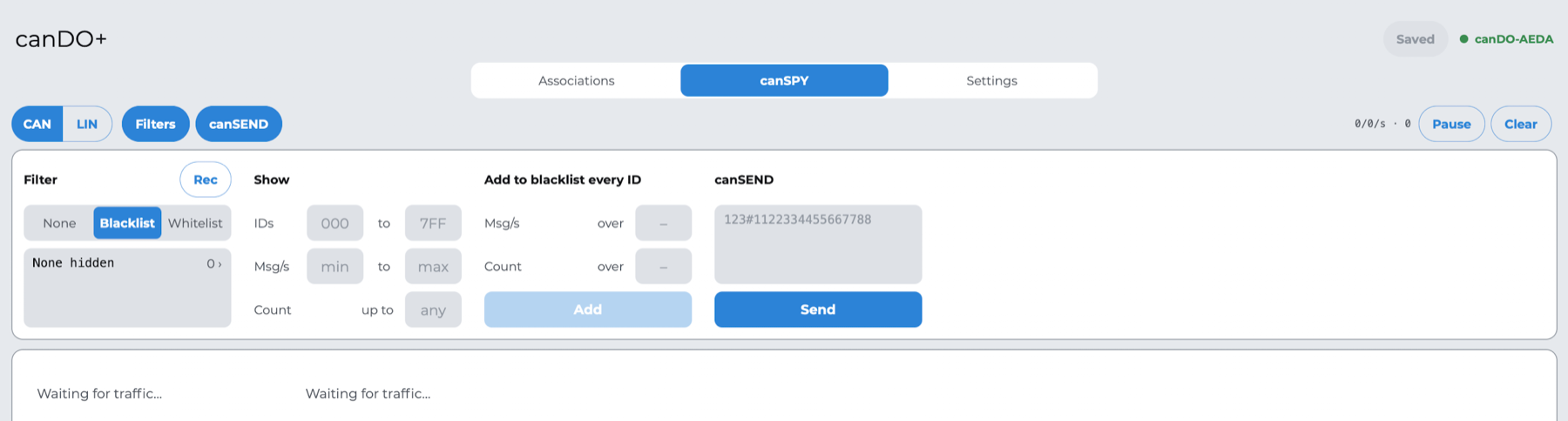
The toolbar
| Control | What it does |
|---|---|
| CAN / LIN | Switches between the CAN bus and the iDrive panel's LIN bus (linView) |
| Filters | Opens the filter panel |
| canSEND | Opens the send panel. Needs the Associations licence |
| Counter | Frames shown per second / received per second · total. N lost means the bus was busier than Bluetooth could carry; those frames were skipped |
| Pause / Resume | Freezes the view without stopping the bus |
| Clear | Empties the view |
Views
Trace lists every frame as it arrives, newest first.
Table keeps one row per ID and updates it in place. A row darkens when it changes, so the ID behind a button you press stands out. Tap a byte to ignore it: it is struck out and its changes no longer highlight the row, which helps with bytes such as counters that change on their own.
On a phone, switch between them at the top of the view; on a tablet they sit side by side.
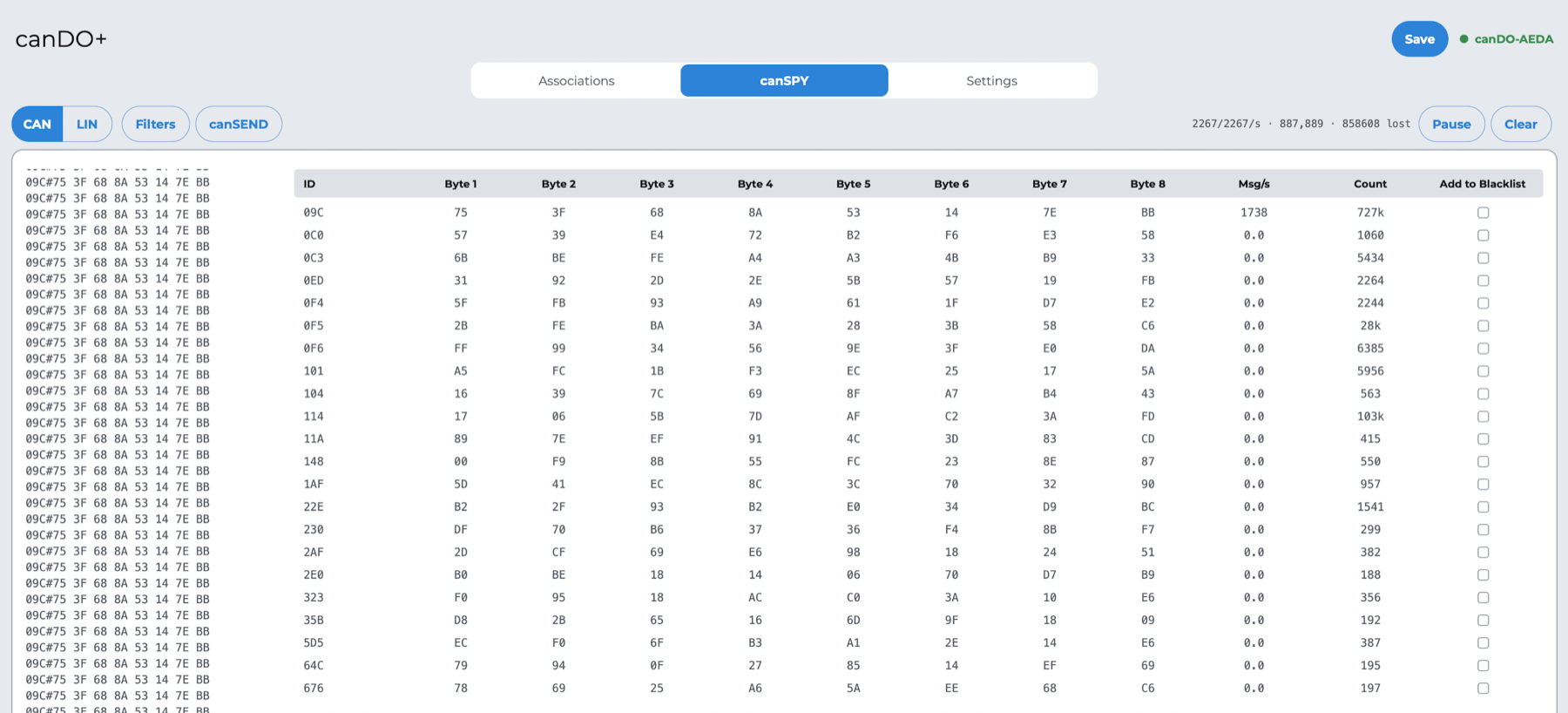
Filters
| Filter | Use |
|---|---|
| None, Blacklist, Whitelist | Show everything, hide listed IDs, or show only listed IDs (up to 5). Enter IDs in hex, separated by commas: 1A0, 2C4 |
| Rec | With Blacklist on, adds every ID seen while recording to the blacklist. Record while you touch nothing, stop, then press the button you are looking for: only its frames remain |
| Show IDs from … to … | Limits the table to an ID range, for example 000 to 0FF |
| Show Msg/s from … to …, Count | Hides IDs that send too often, too rarely, or too many times |
| Add to blacklist every ID over Msg/s or Count | Blacklists the chatty IDs in one tap |
canSEND
Type one or more frames, one per line, as 123#1122334455667788, and tap Send. Use it to test a frame before you save it as a custom action.
Troubleshooting
Most problems come down to the car being asleep, the canSPY tab being open, or edits not saved.
| Problem | What to do |
|---|---|
| The app finds no canDO+ | Make sure the car is awake (unlock it or open a door) and stay near it. Check that Bluetooth is on and that the app has the Bluetooth (Android: Nearby devices) permission. Tap Search again |
| A second or third phone cannot find canDO+ | canDO+ advertises for 2 minutes after a phone connects. Disconnect a phone, or restart canDO+ from a connected phone (Settings › System › Restart), then search again. A fourth phone is never accepted |
| The phone keeps asking for the passkey | Enter the current passkey. Forgotten it? Long-press OPTION until you hear 3 beeps, then use 123456 |
| An iPhone will not pair after a reset | Remove canDO+ under Settings › Bluetooth on the iPhone, then connect from the app again |
| canDO+ is still on WiFi firmware | Join the canDO WiFi network on your phone, then open the app: it offers the update |
| An association does not run | Leave the canSPY tab. Check that Stealth Mode is off. Use Test in the app to see whether the actions work on their own |
| Actions run only partly | The car may still be busy with an animation. Add a delay before the action that is skipped |
| Associations are gone after the car slept | They were not saved. Recreate them and tap Save |
| The Associations tab is missing | This canDO+ is licensed for canSPY only. See Settings › License |
| A temperature trigger did not fire | It is checked only on the first engine start after the car wakes, and not if canDO+ has restarted since. Check the thresholds and the reading under Settings |
| M1 and M2 are mixed up | Set M1 setup to a setting that differs between your M1 and M2 |
| Valve actions do nothing | Check that Settings › Valve controller shows Connected |
| An update stopped part-way | canDO+ still runs its previous firmware. Install again. If it shows Recovery mode, install from there |
| Associations or custom actions behave oddly | Settings › System › Reset database restores the built-in list and erases your associations and custom actions |
Specifications, warranty and legal
Technical specifications
| Item | Value |
|---|---|
| Dimensions | About 65 × 42 × 15 mm (L × W × H) |
| Enclosure | Glass-fibre reinforced ABS |
| Compatibility | BMW G-series with iDrive 7, 8 or 8.5 (see Vehicles and licences) |
| Power supply | 12 V DC, from the vehicle |
| Vehicle buses | CAN and LIN |
| Wireless | Bluetooth Low Energy, up to 3 phones and 1 canDO Valve Controller |
| Radio module | ESP32-C6-MINI-1 |
| Configuration | canDO+ Manager app for iOS and Android |
Warranty and support
canDO+ comes with a one-year exchange warranty covering defects in materials and workmanship under normal use. For warranty claims and questions, email [email protected] with your Device ID and a description of the problem.
Important notice regarding associations
canDO+ lets you automate features already present in your vehicle, such as traction control, lane departure warning and brake assist. When canDO+ automates these settings, the warnings the vehicle normally displays are suppressed. By enabling these automations you accept that:
canDO+ automates and streamlines existing features of the vehicle.
The suppression of built-in safety warnings is a direct consequence of that automation.
You assume full responsibility for the consequences of your automations, and the manufacturer, distributor and any affiliated parties are not liable for any resulting damages or issues.
Use caution. If you are unsure of what a change does, do not make it.
Disclaimer: Use of canDO+
By using canDO+, the user acknowledges and agrees to the following terms and conditions:
Limited Warranty: The manufacturer warrants that canDO+ will function as intended for a period of one (1) year from the date of purchase. However, the user acknowledges that there is no guarantee that canDO+ is free of software defects. If the device fails to function within this warranty period due to defects in materials or workmanship, the manufacturer will, at its sole discretion, repair or replace the device.
Assumption of Risk: The user acknowledges and understands that canDO+ provides the capability to configure various functionalities within the vehicle, including but not limited to, automatically disabling safety features such as Dynamic Stability Control (DSC), enabling Sport Mode, and suppressing built-in warning messages. By using canDO+, the user assumes all risks associated with configuring the device to perform these actions, and they accept full responsibility for any consequences arising from such configurations.
Limitation of Liability: In no event shall the manufacturer, distributor, or any affiliated parties be liable for any direct, indirect, incidental, special, or consequential damages arising out of or in any way connected with the use or performance of canDO+. This includes, but is not limited to, damages for loss of profits, goodwill, use, data, or other intangible losses, even if advised of the possibility of such damages.
Indemnification: The user agrees to indemnify and hold harmless the manufacturer, distributor, and any affiliated parties from and against any and all claims, liabilities, damages, losses, costs, or expenses (including reasonable attorneys' fees) arising out of or related to the use of canDO+.
Jurisdiction: Any legal action or proceeding arising out of or related to the use of canDO+ shall be instituted exclusively in the provincial courts of Quebec, Canada. The user waives any objection to such jurisdiction and venue.
User Responsibility: The user is solely responsible for ensuring that the use of canDO+ complies with all applicable laws, regulations, and manufacturer guidelines. The user agrees to use the device responsibly and to exercise caution when making any modifications to the vehicle's settings or systems.
Modification of Terms: The manufacturer reserves the right to modify or update these terms and conditions at any time without prior notice. It is the user's responsibility to review these terms periodically for any changes.
By using canDO+, the user acknowledges that they have read, understood, and agreed to the terms and conditions outlined in this disclaimer. If the user does not agree with any part of these terms, they should refrain from using canDO+.
Regulatory
FCC Compliance Statement. Contains FCC ID: 2AC7Z-ESPC6MINI1
CAUTION: The manufacturer is not responsible for any changes or modifications not expressly approved by the party responsible for compliance. Such modifications could void the user's authority to operate the equipment.
NOTE: This equipment has been tested and found to comply with the limits for a Class B digital device, pursuant to part 15 of the FCC Rules. These limits are designed to provide reasonable protection against harmful interference in a residential installation. This equipment generates, uses, and can radiate radio frequency energy, and if not installed and used in accordance with the instructions, may cause harmful interference to radio communications. However, there is no guarantee that interference will not occur in a particular installation. If this equipment does cause harmful interference to radio or television reception, which can be determined by turning the equipment off and on, the user is encouraged to try to correct the interference by one or more of the following measures:
Reorient or relocate the receiving antenna.
Increase the separation between the equipment and receiver.
Connect the equipment into an outlet on a circuit different from that to which the receiver is connected.
Consult the dealer or an experienced radio/TV technician for help.
ISED Compliance Statement. Contains IC: 21098-ESPC6MINI1. This Class B digital apparatus complies with Canadian ICES-003. Cet appareil numérique de la classe [B] est conforme à la norme NMB-003 du Canada. CAN ICES-003(B) / NMB-003(B)
Supplier's Declaration of Conformity, 47 CFR § 2.1077 Compliance Information
| Item | Value |
|---|---|
| Product name | canDO+ |
| Product model | canDO+ |
| Manufacturer | 9512-5837 QUEBEC INC., [email protected], https://cando.plus |
| Modular component | 2.4GHz Wi-Fi & BT IoT Module, model ESP32-C6-MINI-1, FCC ID 2AC7Z-ESPC6MINI1 |
This device complies with part 15 of the FCC Rules. Operation is subject to the following two conditions: (1) This device may not cause harmful interference, and (2) this device must accept any interference received, including interference that may cause undesired operation.