canDO+ Quick Start
1. Unbox and get the app
Check the box: the canDO+ module, the Y-cable for the CAN connection, and the LIN parts (a red wire with a pin, and a red-and-black lead to canDO+).
Have a trim tool, a small flat-head screwdriver, and a pick tool or fine tweezers ready.
Install canDO+ Manager from the App Store or Google Play. We recommend a tablet or an Apple silicon MacBook: the larger screen shows two columns side by side, which makes setting up shortcuts much easier. A phone works too.
2. Install
For full instructions, see the installation section of the canDO+ User Guide.
Switch the ignition off and leave a door open, without locking the car. Wait about 5 minutes, until the centre console light goes off.
Remove the trim around the iDrive controller.
Fit the Y-cable between the iDrive controller and its CAN connector, and plug canDO+ into it.
Make the LIN connection at the 18-pin connector under the iDrive module (see the LIN Connection Guide).
Place canDO+ at the back of the console, at least 20 cm from where anyone sits. Leave the trim off until you have tested it in step 3.
3. Connect and test
Unlock the car and sit inside: canDO+ wakes up with the car. No ignition needed.
Open the app, accept the disclaimer and allow Bluetooth (on Android, Nearby devices).
If more than one canDO+ is in range, pick yours (canDO-XXXX). When your device asks for a code, enter 123456.
The badge at the top right turns green: the app is connected.
Your phone sees a WiFi network called canDO instead? That canDO+ still has the older WiFi firmware. Join the network (password candobmw), open the app and accept the update it offers. Do this on a phone with mobile data turned on: the app downloads the firmware over it.
Test before you refit the trim. If a test fails, recheck that connection.
Press A/OFF and PARKING on the button panel. Both work as usual.
Open the canSPY tab with CAN selected. Frames stream in: the CAN connection works.
Switch to LIN, show the Table view and press A/OFF. A row darkens as it changes: the LIN connection works.
Leave the canSPY tab and refit the trim.
4. Create your first shortcut
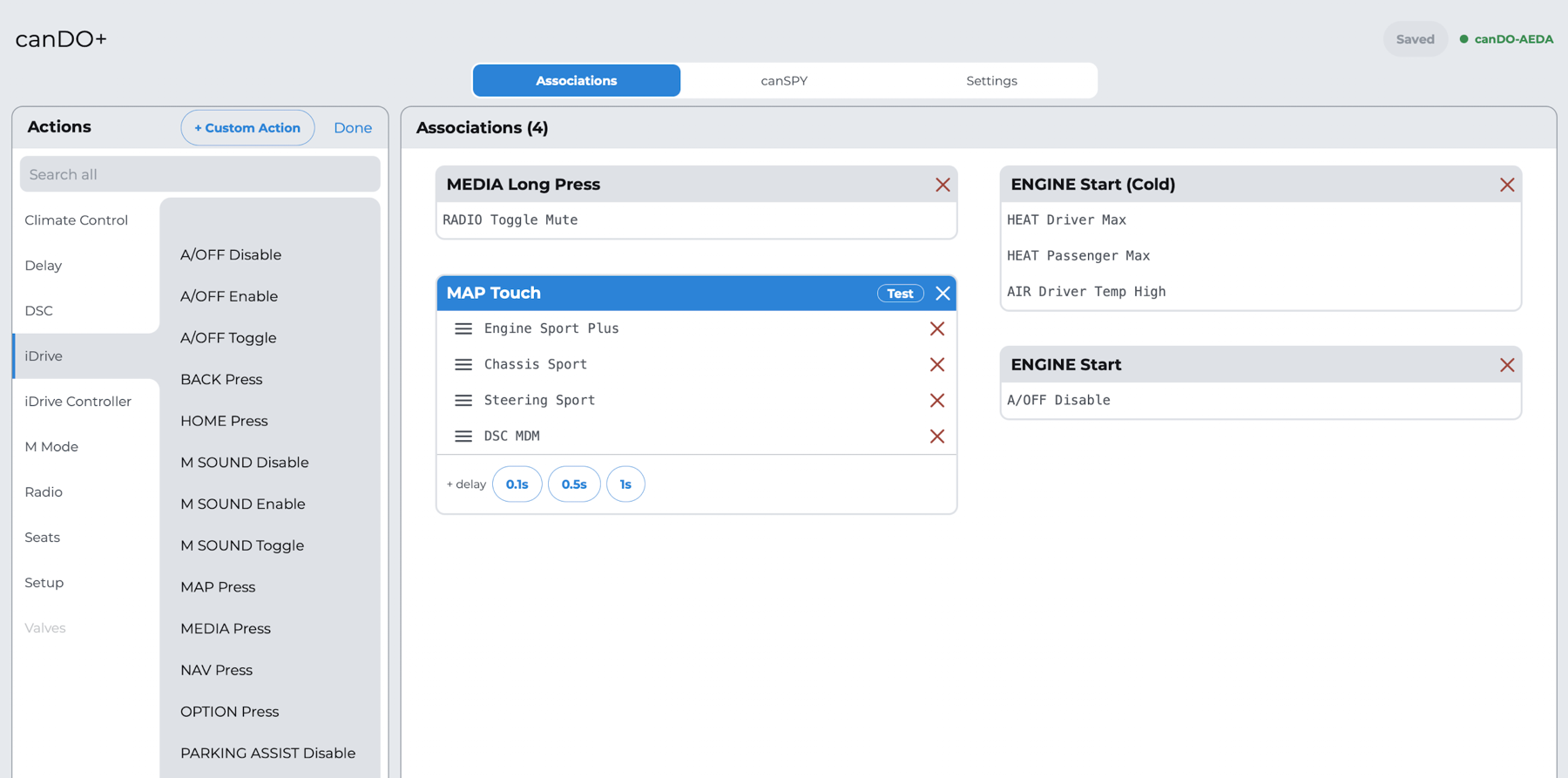
An association links a trigger (a button gesture, the engine starting, a key-fob button…) to one or more actions, which canDO+ runs in order. The User Guide lists every trigger and action.
On the Associations tab, tap Trigger and pick one, for example MAP Touch.
Tap + Action and pick an action. Repeat to add more.
Tap Test to run it from the app.
Tap Save in the header. Unsaved changes work straight away but are lost when the car sleeps.
| Gesture | How |
|---|---|
| Touch | Rest a finger on the button without pressing, then lift it |
| Long Touch | Rest a finger on the button for about half a second |
| Press | Press and release, as usual |
| Long Press | Press and hold |
A beep confirms a Touch, Long Touch or Long Press that has an association.
| Ideas to start with | Actions |
|---|---|
| ENGINE Start | A/OFF Disable: auto start/stop off at every start |
| MAP Touch | Engine Sport Plus, Chassis Sport, DSC MDM (G8X) |
| TEL Long Touch | HEAT Driver Max |
5. Stay up to date
When a dot appears on the canDO+ card under Settings, new firmware is ready: tap Install in the car and keep the app open until it reconnects. Your setup is kept.
Good to know
Forgot the passkey? Long-press OPTION on the iDrive controller until you hear 3 beeps. The passkey is back to 123456 and every device is forgotten; on an iPhone, also remove canDO+ under Settings › Bluetooth.
A shortcut does not run? Associations pause while the canSPY tab is open, and never run with Stealth Mode on.
No Associations tab? It is a canSPY-only unit; unlock it under Settings › License.
Drive responsibly. When canDO+ changes settings such as DSC, the car does not show its usual warnings. You are responsible for what your associations do; read the notice in the User Guide.
Need help? App cannot find canDO+? Wake the car and tap Search again. More information is in the User Guide. Still stuck? Tap Send logs to canDO support and email [email protected] with the Device ID from Settings › canDO+.