canDO Valve Controller User Guide
Welcome
The canDO Valve Controller sits between your BMW's exhaust-valve actuators and the car's wiring, so you decide how far the exhaust valves open: the factory (OEM) behaviour, a fixed opening, or a change applied on top of what the car asks for.
You control it from the Valve Ctrl app on your phone, and also from:
Zones: the valves change by themselves when you arrive at or leave places you mark on a map.
Quiet Start: the car starts quietly during the hours you choose.
CarPlay and Android Auto: a grid of valve buttons on the car's screen.
The iOS home-screen widget: the valve ring without opening the app.
canDO+: any canDO+ trigger, such as M1 or a key-fob button, can set the valves.
If the controller loses a signal it depends on, it goes straight to its safe position and the app tells you. On current controllers that is OEM: the car drives the valves directly. Early controllers without the bypass relay open the valves fully instead.
This guide covers app version 1.2 and controller firmware 1.2.
What you need
A BMW with factory exhaust-valve actuators, the controller, and the Valve Ctrl app on an iPhone or Android phone.
| Item | Requirement |
|---|---|
| Vehicle | BMW F- or G-series with factory exhaust-valve actuators, including the G42 |
| Phone | iPhone, or Android 11 or later, with Bluetooth |
| App | Valve Ctrl 1.2 or later: Google Play, or search Valve Ctrl on the App Store |
| Controller firmware | 1.2.0 or later. The app offers the update if yours is older |
The QR code on the controller's label opens a page with links to both stores.
Licences. Most controllers come with full valve control. A controller sold as a diagnostic model only reports what the car's ECU asks the valves to do, without moving them. Valve control can be unlocked later from the app (see Licence under the features reference). Controllers bought before licensing keep full valve control.
Installation
The controller plugs in between each exhaust-valve actuator and its factory connector, with no cutting or splicing; work only on a cool exhaust.
In the trunk, find the unused grommets that lead to the rear under-floor area. A trim tool helps remove the trunk liners.
Remove a grommet, feed both controller connectors through it, and reseat the grommet around the cable.
Under the car, unplug the factory 3-pin connector from each exhaust-valve actuator.
Plug the controller in between each actuator and the car's harness.
In the trunk, mount the controller near the battery and tidy the harness.
The controller is powered by the car. Start the engine (or switch on diagnostics mode) when you pair it for the first time. If you are not comfortable with car electronics, have a technician install it.
Get the app and pair
Open Valve Ctrl with the engine running; it finds the controller by itself, and the first time your phone shows its own Bluetooth pairing prompt.
Install Valve Ctrl and open it. A short guided setup explains each permission before the phone asks.
Start the engine, or switch on diagnostics mode, so the controller is powered.
The valve ring shows SCANNING while the app looks for the controller, then connects.
The first time, the phone shows its Bluetooth pairing prompt: enter the controller's 6-digit pairing code. This is needed once per phone and controller.
The app checks the controller's firmware and offers an update if one is available.
Pair from the phone itself the first time, not from CarPlay or Android Auto, so you can answer the pairing prompt.
Permissions
| Permission | Why the app asks | Needed? |
|---|---|---|
| Nearby devices (Bluetooth) | Find, connect to and control the controller | Yes |
| Location (precise) | Centre the map and detect zones, which can be as small as 50 m | For zones. On Android 11 and older, also for Bluetooth scanning |
| Location in the background | Apply a zone's valve mode with the app closed. Asked when you add your first zone | For zones |
| Physical activity (Android) | Turn the valve dial the right way up when the phone is mounted upside down. Nothing is recorded | Optional |
| Notifications | Zone changes ("Entered zone · Valves set to 50%") and controller fault warnings | Recommended |
| Running in the background | Keep the link (and zones) alive with the screen off, including on Android Auto | Recommended |
Location is collected only while the controller is connected, only to work out which zone you are in, and is never sold or used for advertising.
If the app cannot reconnect
After some Bluetooth errors, or a firmware update that changes how the controller pairs, the app asks you to forget ValveCTRL in your phone's Bluetooth settings, come back, and tap Done. It reconnects within a few seconds.
To switch to a different controller, use Link a different controller: the app forgets the current one and looks for another.
App tour
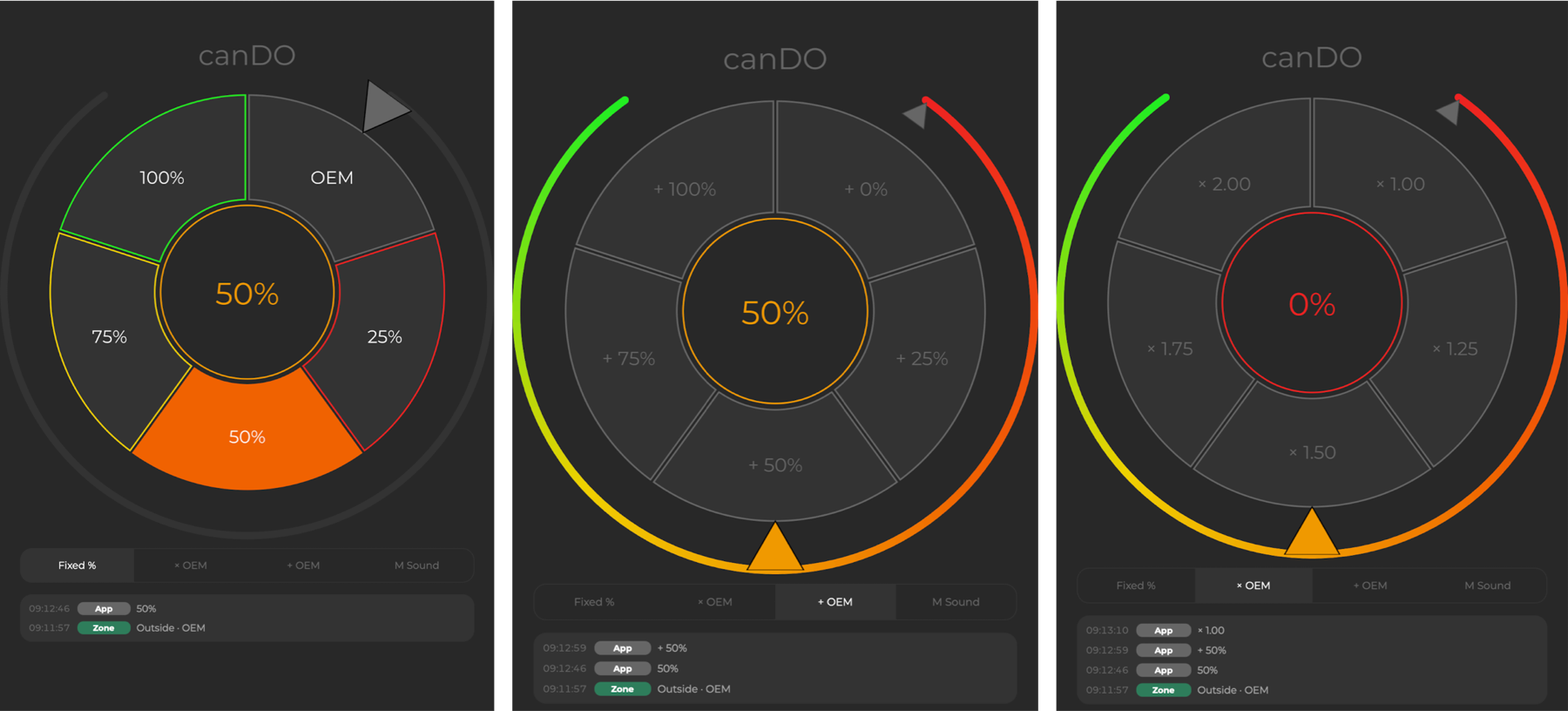
The app is one main screen, the valve ring, with a control strip along the bottom that opens Settings, Update and canDO+.
The valve ring
| Part | What it does |
|---|---|
| Wedges | Tap OEM, 25%, 50%, 75% or 100% to jump to that position |
| Precision dial (outer ring) | Drag the caret to set any value from 0 to 100%. The ring is shaded red to green to match the opening |
| Grey caret | Where the car's ECU is asking the valves to be, for comparison |
| Centre readout | The valves' actual opening right now |
| Mode row | Fixed %, × OEM, + OEM and M Sound, as your controller's firmware supports them |
| Activity log | Recent valve changes and what made them: App, Zone, canDO+, CarPlay, Widget or the controller itself |
| Status | SCANNING while connecting. OUTPUT LOSS or ECU LOSS if the controller reports a fault; the controls are then disabled and an alert explains why |
The control strip
| Button | Opens |
|---|---|
| Settings | Zones and Quiet Start (main tab), Telemetry, and Regulatory |
| Update | Controller firmware updates and the controller's licence. A ! badge means an update or unlock is waiting |
| canDO+ | Linking the controller to a canDO+ |
Valve modes
OEM leaves the car in charge; every other mode overrides it, either with a fixed opening or by changing what the car asks for.
| Mode | What the valves do | Use it for |
|---|---|---|
| OEM | Follow the car's own valve signal, as if the controller were not there | Normal driving, inspections |
| 25%, 50%, 75%, 100% | Hold that opening, whatever the car asks | A set sound level |
| Fixed % | Hold any opening you set on the precision dial | Fine-tuning a set level |
| × OEM | The car's opening multiplied by a factor (for example 1.25) | More sound in proportion across the rev range |
| + OEM | The car's opening plus a fixed amount (for example +20%) | A louder floor that still follows the car |
| M Sound | Track the car's own M Sound / sport-exhaust setting | Letting the car's button decide |
The mode row shows only the modes your controller's firmware supports: × OEM and + OEM need firmware 1.1.10, and M Sound needs 1.2.0. On the G42 the wedges are OEM, 50% and 100%.
Features
Everything beyond the valve ring lives in Settings, on the car's screen, or on your home screen.
Zones
Zones change the valves by location: for example OEM near home and 100% at the track, with nothing to tap once they are set up.
Open Settings from the control strip. The main tab shows a map.
Tap Add zone to drop a zone, or tap an existing one to edit it.
Drag it into place and set its radius, from 50 m to 2000 m.
Pick the valve mode the zone applies: OEM, a preset, or a custom value.
Delete a zone from the zone list at any time.
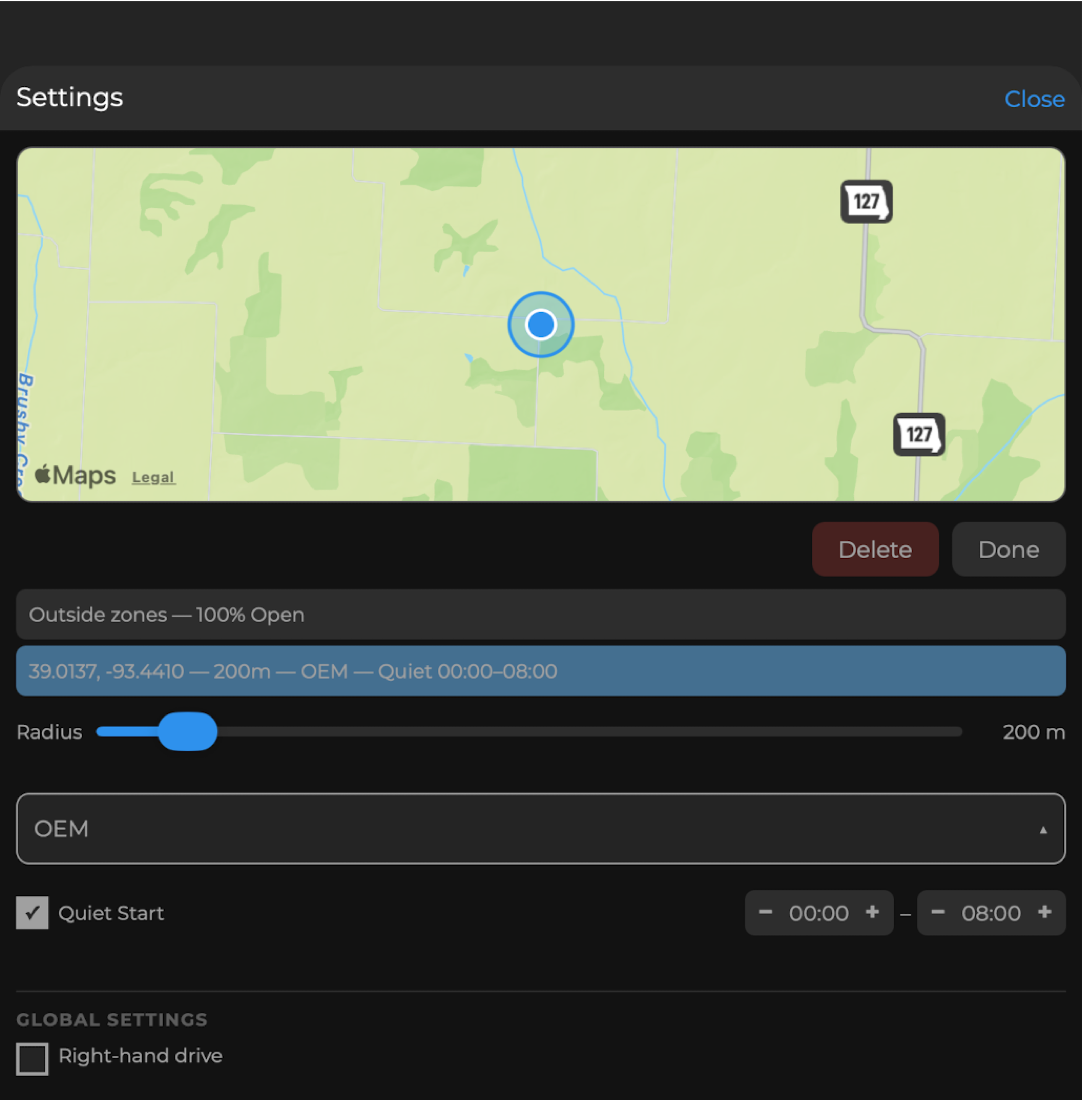
The Outside zones row sets the mode used whenever you are in no zone. Zones keep working with the app closed and the phone locked, including when the app was started by CarPlay or Android Auto. With notifications on, you get a notice such as Entered zone · Valves set to 50%.
Quiet Start
Quiet Start keeps a cold start quiet for the neighbours. Each zone, and Outside zones, can have its own Quiet Start hours: tick Quiet Start and set the from and to times, in half-hour steps. During those hours the controller keeps the valves quiet at engine start until you press past 30% throttle, or for up to 60 seconds.
CarPlay and Android Auto
On the car's screen, Valves shows a grid of buttons, one per mode your controller supports (OEM, 100%, 75%, 50%, 25%, Custom). The active mode is filled in and the title shows the live state, for example Valves — 50%. CarPlay works without opening the phone app first. Android Auto works even when the app is not open.
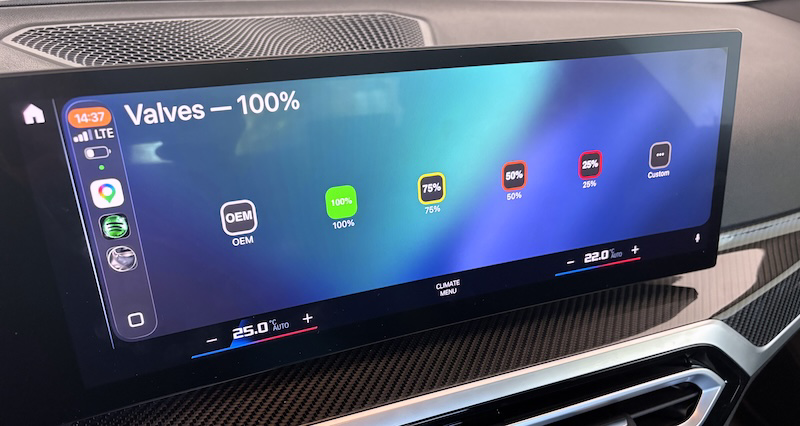
For a right-hand-drive car, turn on Right-hand drive under Global Settings in Settings, so the car controls sit on the correct side.
Home-screen widget (iOS)
Add the Valve Control widget in small, medium or large size. It shows the same ring as the app; tap a wedge and the widget lights up to confirm, then shows the controller's actual position once it has changed. There is no Android widget.
Telemetry
The Telemetry tab in Settings records speed, acceleration and valve position during a drive. Tap Rec to start; a recording stops by itself after 10 minutes. Pinch to zoom the charts, and manage past recordings from the list.
Licence
The Update panel adds a licence section when the controller is diagnostic-only or an unlock is available for it. A diagnostic-only controller can be unlocked from there: buy the unlock, or use Already purchased a license? to activate one you bought. The controller restarts with valve control.
Phone behaviour
The screen stays on while the phone is charging, so the ring is ready in a phone mount.
When the phone is mounted upside down, the dial turns the right way up.
Using it with canDO+
Linked to a canDO+, the controller takes valve actions from any canDO+ trigger, such as M1, a key-fob button or an iDrive button, without your phone.
canDO+ with firmware 3.0 (Bluetooth). canDO+ connects to the controller directly:
In the canDO+ Manager app, open Settings › Valve controller and tap Scan.
Tap your controller and enter its 6-digit pairing code.
The card shows Connected. Valve actions are now available in canDO+.
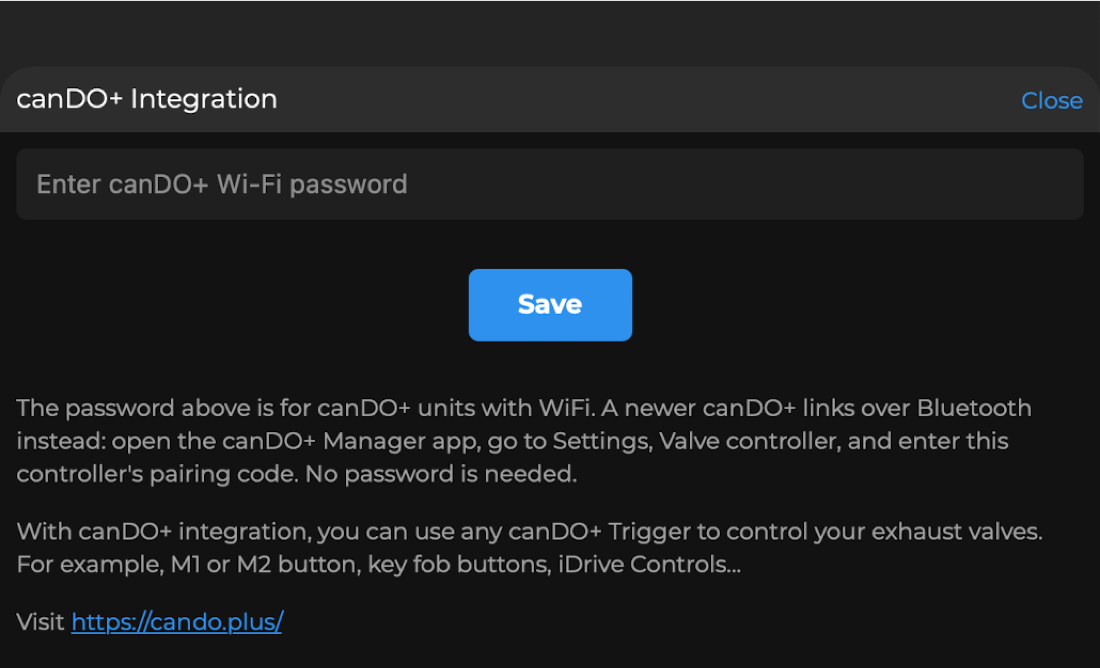
canDO+ with WiFi firmware (2.x). Only controllers on firmware 1.2 or older can link to it: tap canDO+ on the Valve Ctrl control strip and enter the canDO+ WiFi password. From controller firmware 1.3.0 the controller has no WiFi, so update canDO+ to 3.0 and link it over Bluetooth.
What canDO+ can do with the valves
| canDO+ action | Valves |
|---|---|
| OEM Valves | OEM |
| 25%, 50%, 75%, 100% OPEN Valves | That opening |
| TOGGLE Valves | Toggle, as the controller does |
| NN% OPEN Valves, OEM x 1.NN Valves, OEM + NN% Valves | Custom actions you create in canDO+ (Fixed %, × OEM, + OEM) |
On a canDO+ connected to the car's button panel, you can also set what the valves do when you switch M Sound on and off (canDO+ Settings › Exhaust valves on M Sound).
When canDO+ changes the valves, the activity log on the valve ring shows canDO+ as the source.
Firmware updates
The app checks the controller's firmware each time it connects and puts a ! badge on Update when a new version is ready.
Tap Update on the control strip, then start the update.
Keep the engine running (or diagnostics mode on) and the phone near the car until the progress bar completes.
The controller restarts by itself with the new firmware.
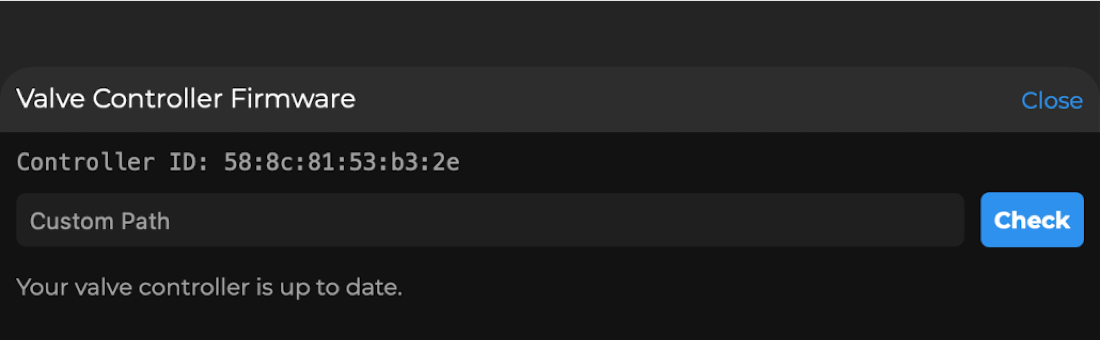
If an update changes how the controller pairs, the app notices and walks you through re-pairing. App 1.2 needs controller firmware 1.2.0 or later; on an older controller the app asks you to update it first.
Troubleshooting
Most problems come from the controller being unpowered or an old Bluetooth pairing on the phone.
| Problem | What to do |
|---|---|
| The ring stays on SCANNING | Start the engine (or diagnostics mode), stay near the car, and check Bluetooth is on. If it still does not connect, forget ValveCTRL in the phone's Bluetooth settings and pair again |
| The phone keeps asking to pair | Enter the controller's 6-digit pairing code. If it fails, forget ValveCTRL in Bluetooth settings and try again |
| OUTPUT LOSS or ECU LOSS, controls disabled | The controller lost a signal and went to its safe position. Check the connectors at the valve actuators. If the signal comes back and stays steady for 3 seconds, the controller returns to your mode by itself |
| A warning appeared once and went away | A brief dropout only warns you if it is still there 10 seconds later, or comes straight back. The controller also sends support a diagnostic log, so nothing more is needed |
| Zones do not switch | Allow location Always (background) and precise location, and keep notifications on. On Android, allow the app to run in the background |
| No fault warnings | Turn on notifications for Valve Ctrl |
| The app asks for a firmware update first | App 1.2 needs controller firmware 1.2.0. Install it from Update |
| Controls are greyed out on a new controller | It may be a diagnostic-only model. Check the licence in Update |
Specifications, warranty and legal
Technical specifications
| Parameter | Value |
|---|---|
| Supply voltage | 9 to 16 V DC |
| Current draw | 100 mA maximum |
| Operating temperature | −40 to +85 °C |
| Ingress protection | IP66 |
| Dimensions (L × W × H) | 65 × 65 × 41 mm |
| Wireless | Bluetooth Low Energy |
Warranty and support
The canDO Valve Controller is covered by a one-year limited hardware warranty against defects in materials and workmanship under normal, intended use. Our sole obligation under this warranty is, at our election, to repair, replace, or refund the purchase price of any product found to be defective. For warranty service, email [email protected] with a description of the issue and the controller's serial number.
Limitation of liability
9512-5837 Quebec Inc. is not responsible for any damage to your vehicle, its electronic systems, or other property, nor for any loss of use, downtime, or any incidental, indirect, special, or consequential damages arising from the installation or use of this product, whether in contract, tort, or otherwise. Installation and operation of the canDO Valve Controller are undertaken at the owner's risk.
Legal disclaimer
Installation may affect OEM vehicle warranty; consult your dealer.
Exhaust-valve control devices may be restricted on public roads in certain jurisdictions. Ensure compliance with local regulations.
Intended primarily for track or off-road use where permitted.
FCC and ISED compliance information is in the app, under Settings › Regulatory.